CD_DN_Prepare
Guide for CD_DN_Prepare
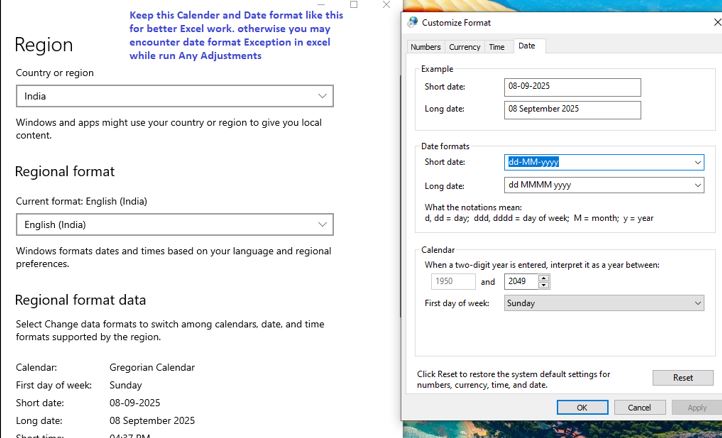
- Keep this Calender and Date format like this for better Excel work.
otherwise you may encounter date format Exception in excel while run Any Adjustments
- Office_Tools app doesn't needed macro enabled Excel. You can keep disabled in Trust Center.
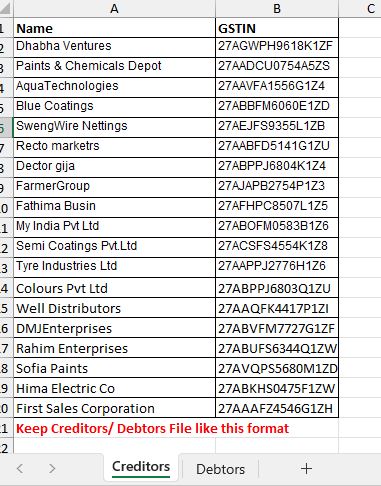
- Prepare Creditors List
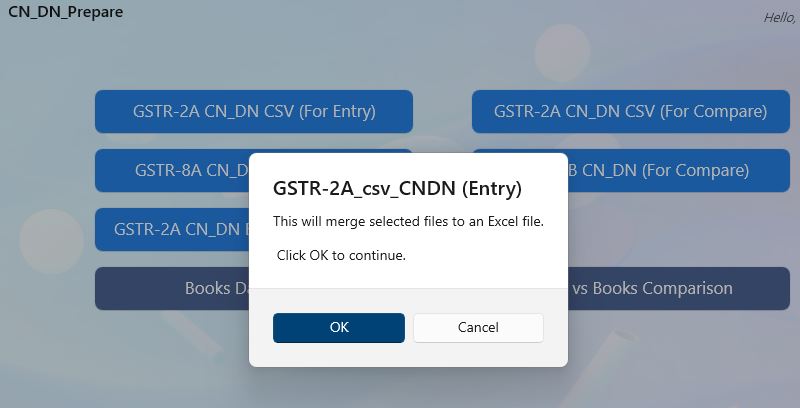
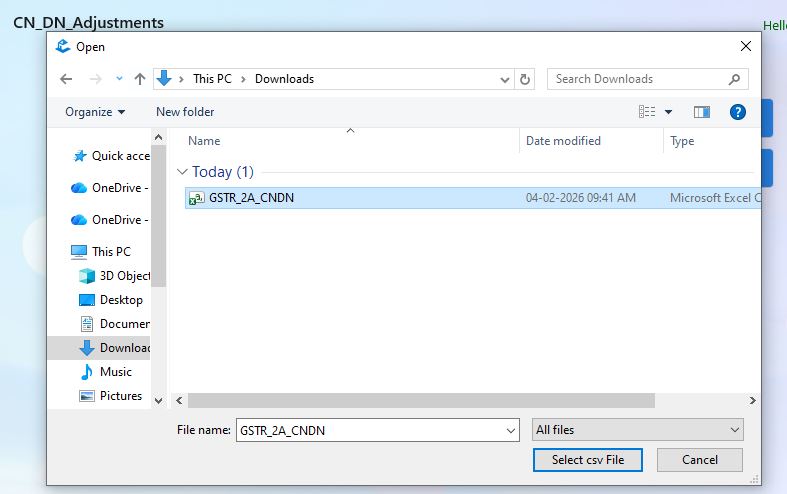
- Select downloaded CN_DN file (ex: csv flile for entry purpose)
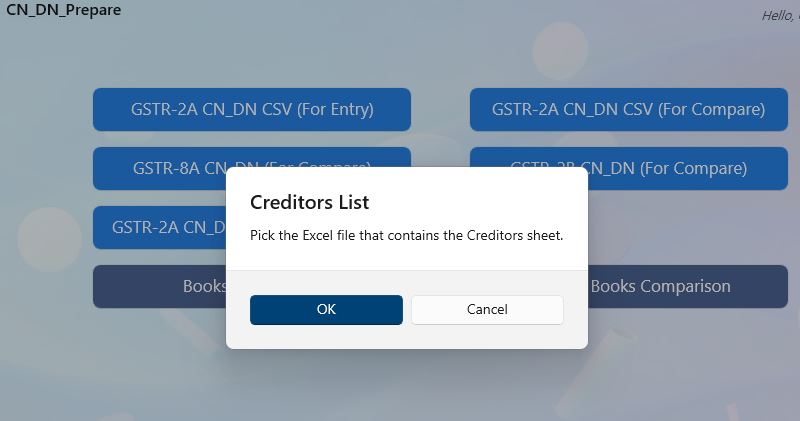
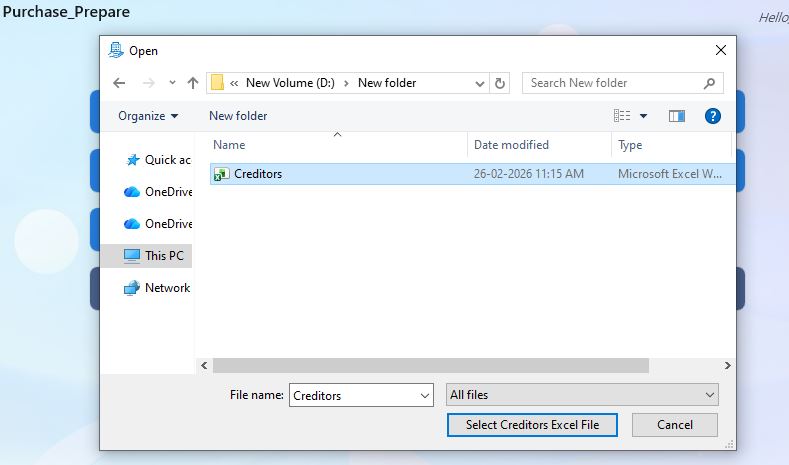
- Select Creditors excel file which is created
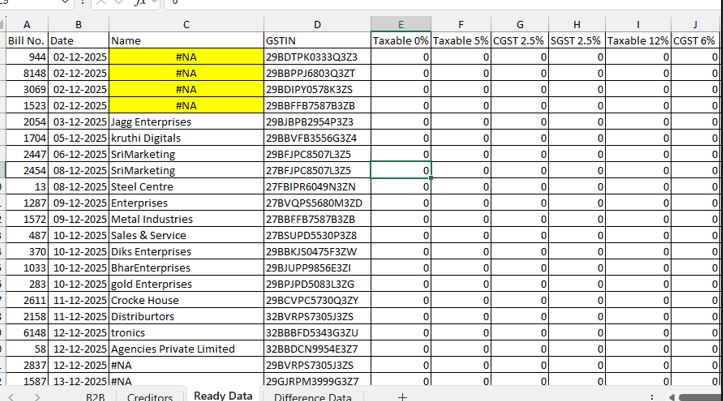
- Open File generated file and see for errors in Ready Datasheet
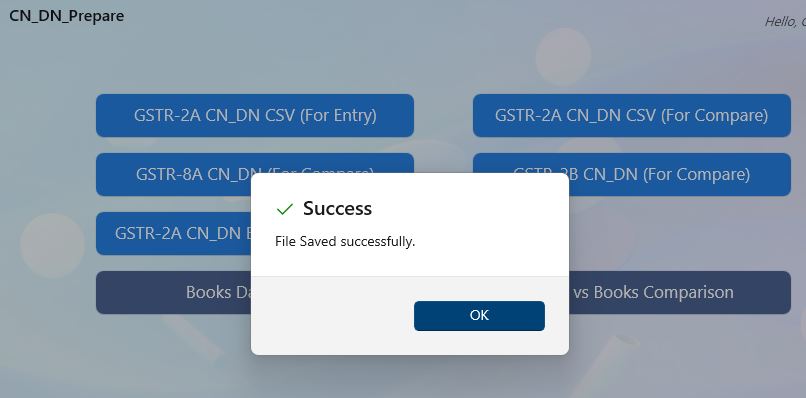
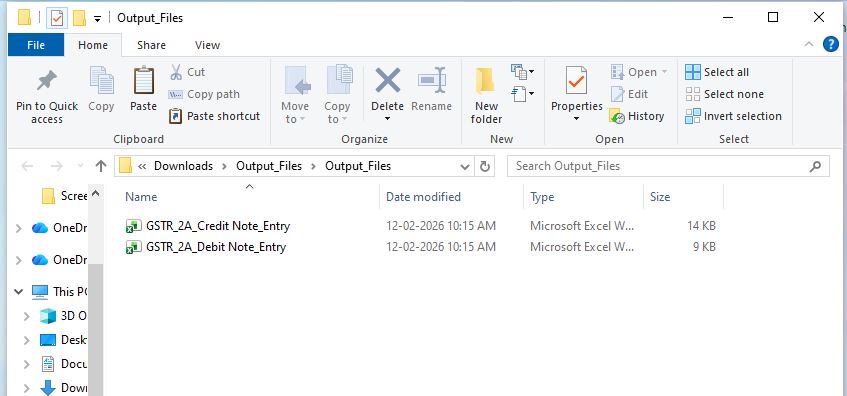
- It will generate Ready file for use
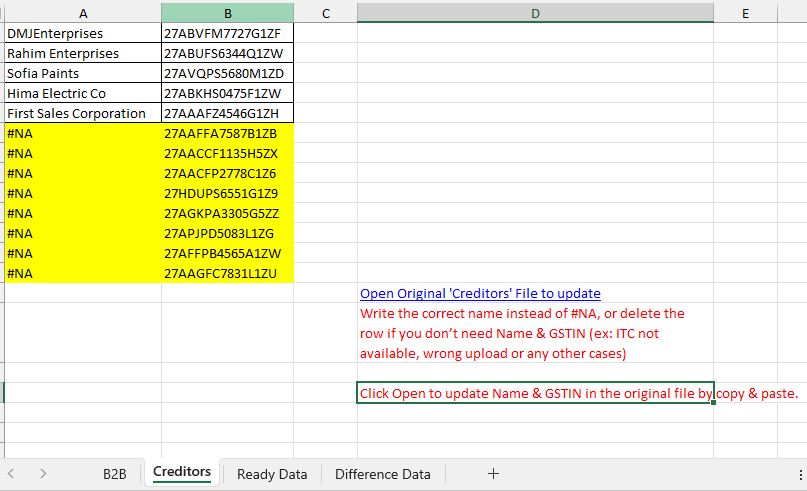
- If you see #NA in Name field (Ready Datasheet), that means NEW GSTIN not present in Creditors list,
lets update in Both Creditors Sheet as well as in your Original Creditors list Excel file for future proof.
Back to Home