HSN Prepare
Step 1: Selct HSN Direct (No Adjustments needed and data has in Clean format)
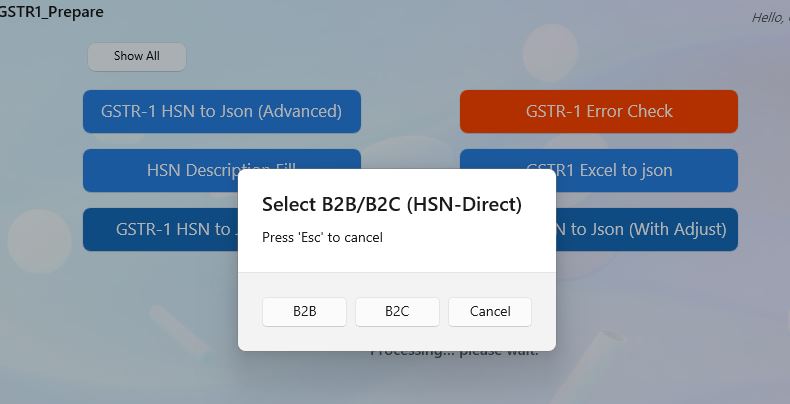
Step 2: Select B2B or B2C as per need
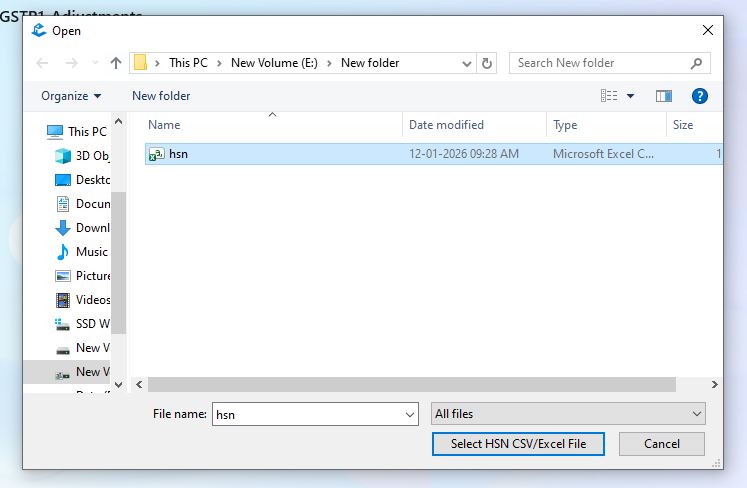
Step 3: Select HSN data csv or excel file
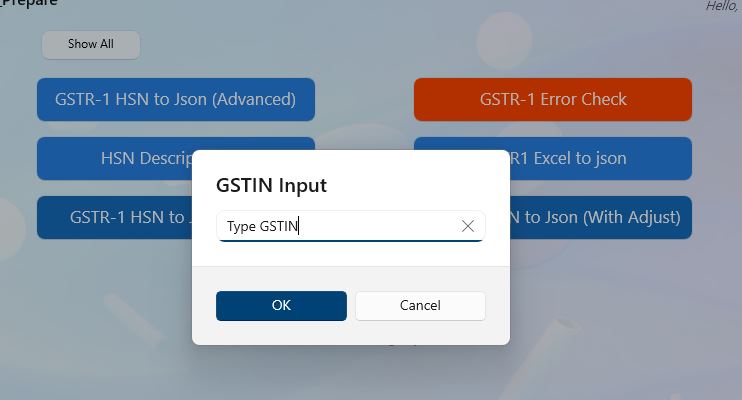
Step 4: Input GSTIN
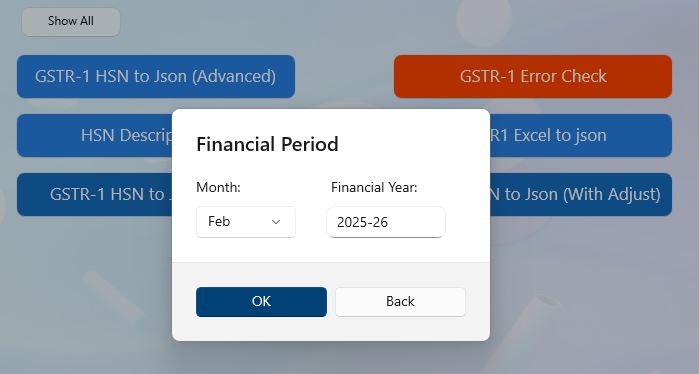
Step 5: Input Period (MMYYYY format only)
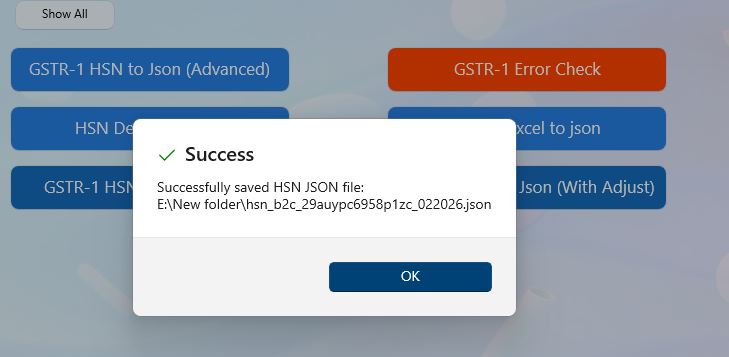
Step 6: File generated successfully
ERROR: If you get error while generate json file it will open new Excel file with details of error.
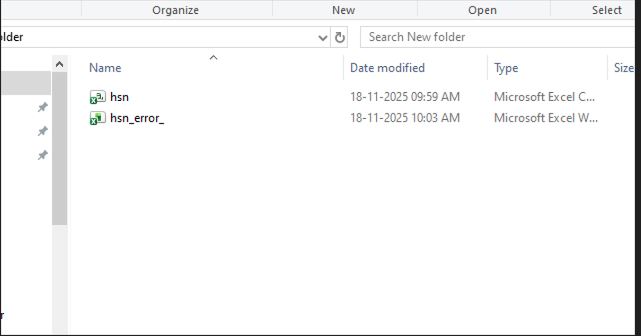
Erro file is created where csv file present.
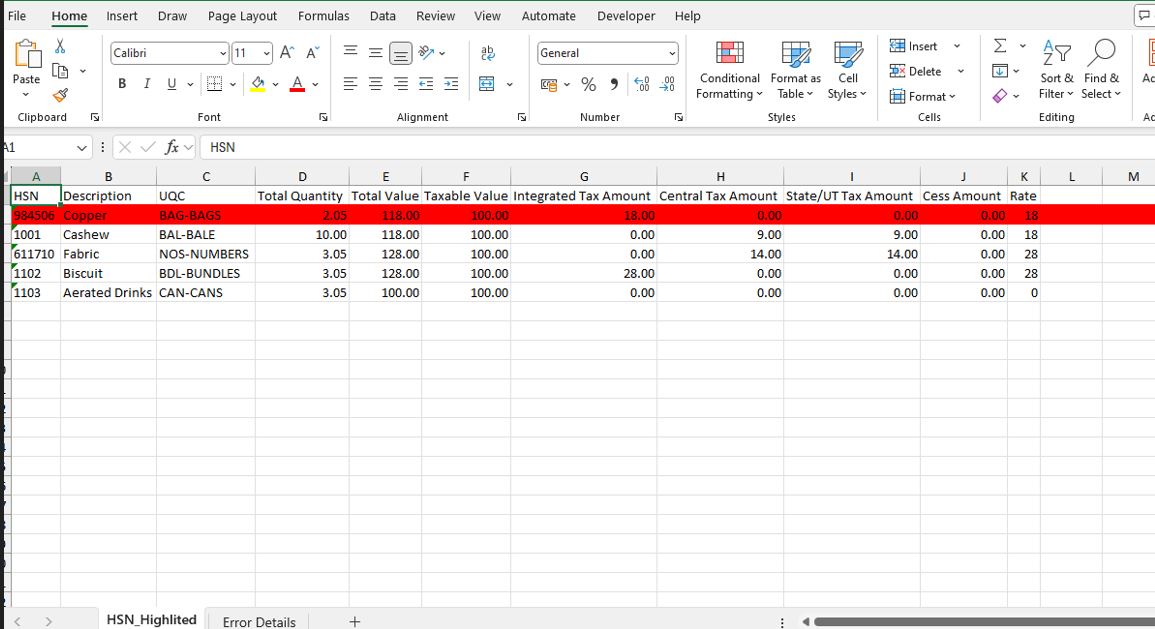
If you choosen csv file it will create Error excel file in the same path and you need to rectify
csv file according to error details.
Back to Home